
Getting Started with Clash Verge Rev
Last updated:
Set up Clash Verge Rev by importing a remote subscription or a local configuration, selecting a proxy, and checking a browser connection through the app.
Contents
What is Clash Verge Rev?
Clash Verge Rev is a desktop proxy client for Windows, macOS, and Linux. It uses the Mihomo core to interpret profiles. An active profile defines proxy nodes, policy groups, and rules for the traffic you send through the client.
How to Download and Install?
Choose an installer that matches your operating system and processor. Check the architecture before downloading a Windows or Mac package. On Linux, choose the DEB or RPM package for your distribution where available.
Interface Overview
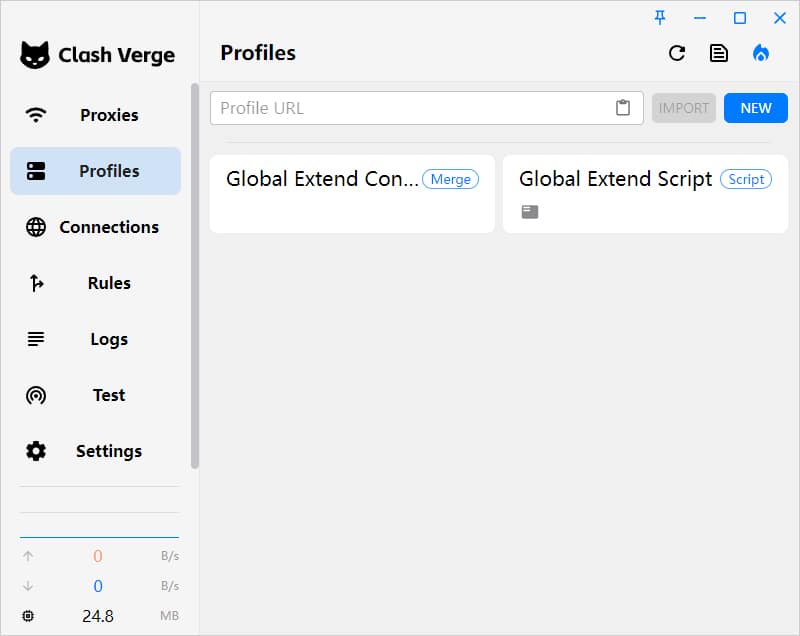
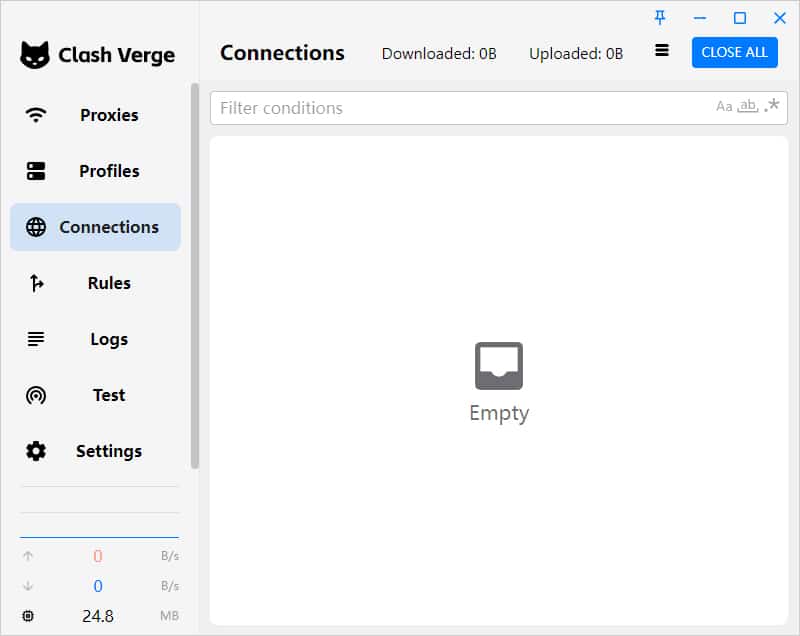
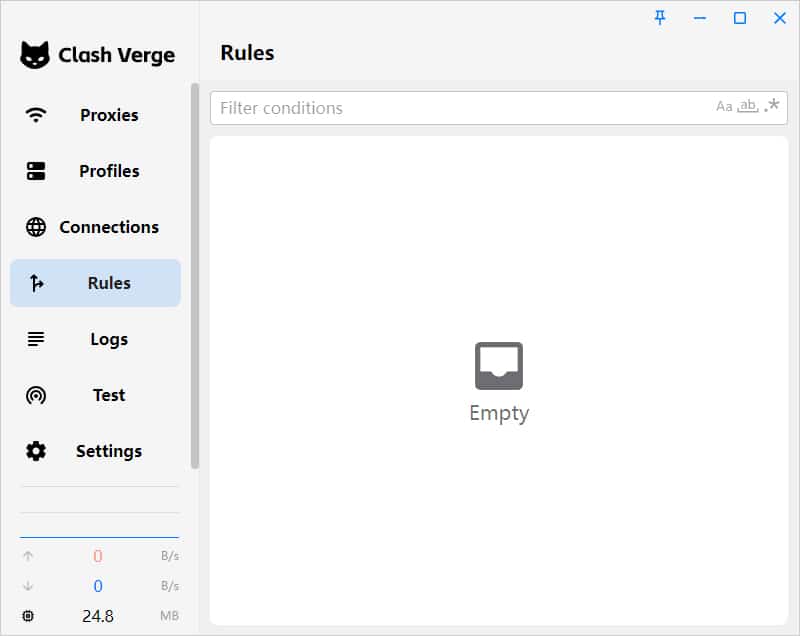
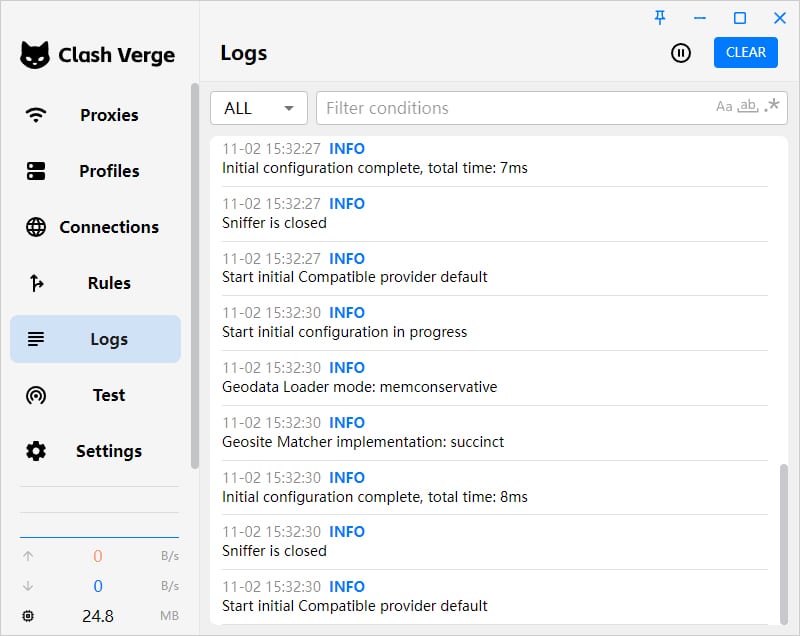
In Profiles, a Remote entry fetches a configuration from a URL and a Local entry uses a file. Use Proxies to pick a node in the appropriate policy group. Connections shows requests seen by the client and helps confirm whether a rule sent a request directly or through a proxy.
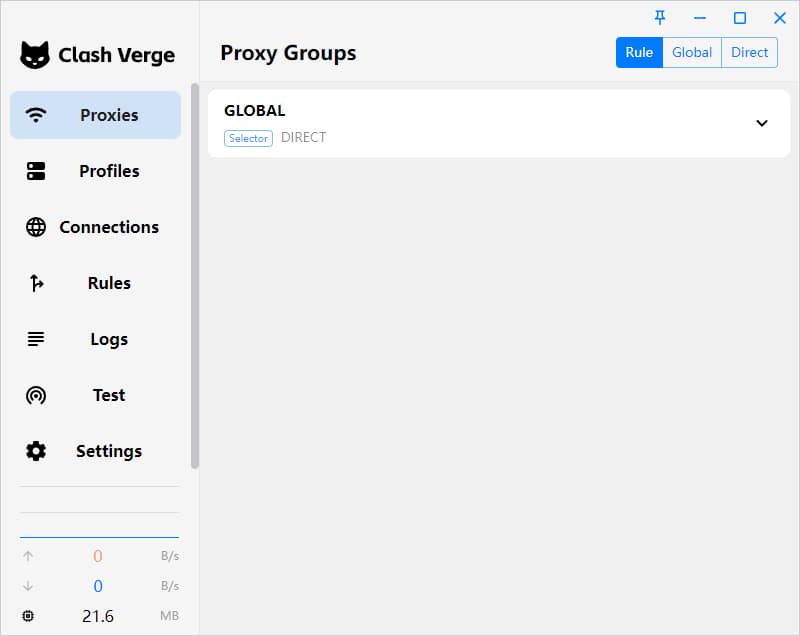
Servers
Ask your provider for a Clash-format URL that works with Mihomo. The link should return a configuration file. If your provider offers several link types, use the one it identifies for Clash or Mihomo.
Compare plans and find a Clash Verge Rev subscription
Quick Configuration
- In Profiles, use the remote import field or select New to add a Remote profile. For a local file, select Local.
- Refresh the profile if needed and select it. Open Proxies and choose a responding node in the relevant group.
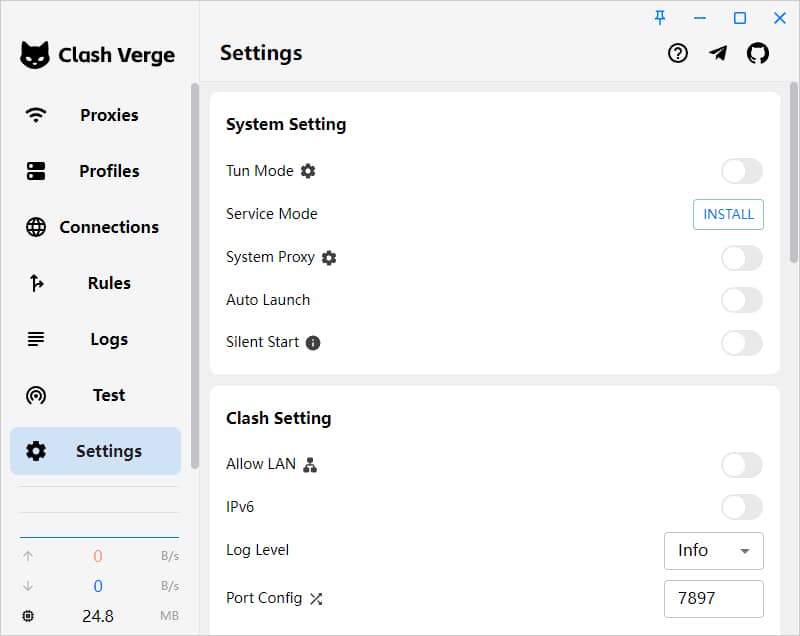
- Enable System Proxy from Home or Settings. Visit a site your rules send through a proxy and check the matching entry in Connections.
An update failed? Check the error and the last successful update time. Keep your working configuration while confirming whether the link expired or returns a login page.